1. Signing in
- Sign in with your password, or click Email me a sign-in code instead and type the 6-digit code we email you. Codes expire in 15 minutes.
- Forgot your password? On the sign-in page, click Forgot password?, enter the code we email you, and choose a new one.
2. Two-factor sign-in
- Two-factor sign-in is required for Org Admins and optional (but recommended) for everyone else.
- Open Account & security and click Turn on two-factor sign-in. Then enter a code from your authenticator app (Google Authenticator, Microsoft Authenticator, or 1Password) each time you sign in.
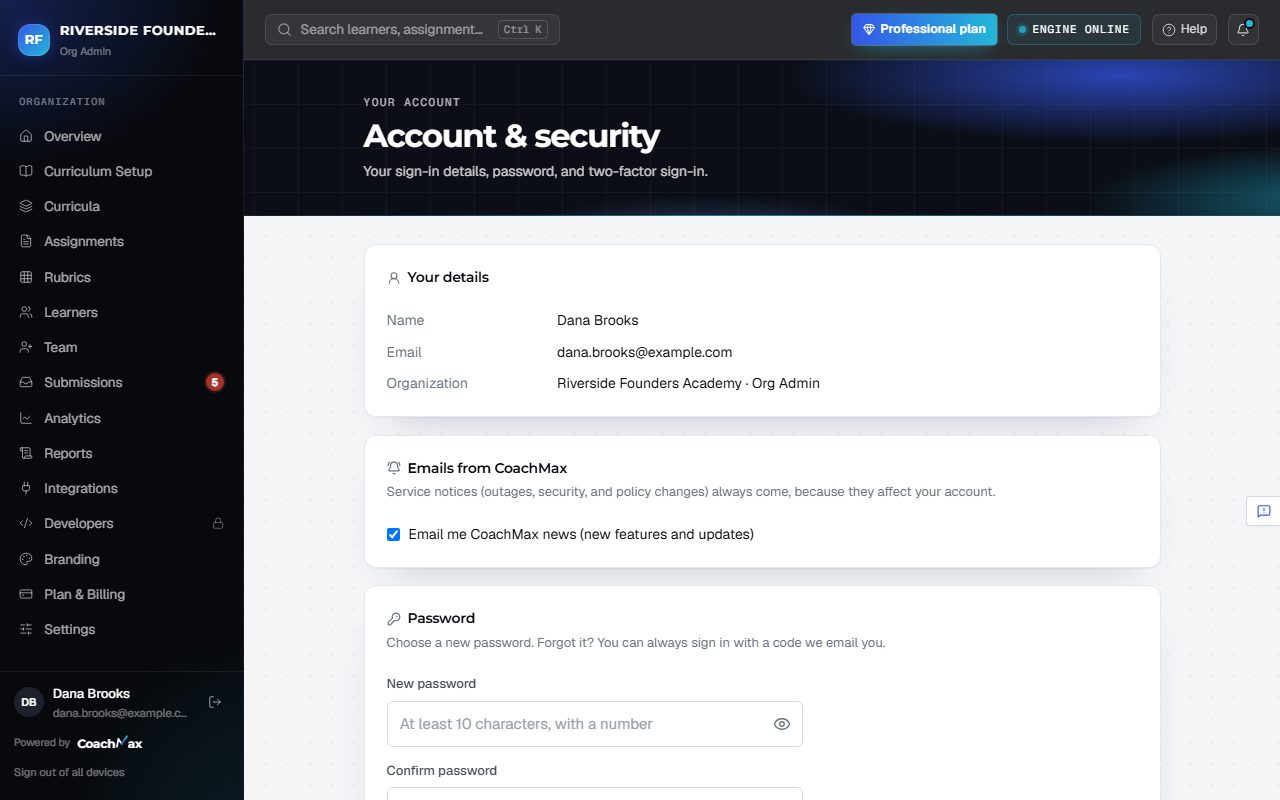
3. Your account
- Click your name at the bottom of the menu for Account & security: change your password (Change password), turn two-factor on or off, or Sign out of all devices.
Still stuck? Sign in and click Help at the top right to ask CoachMax, or email support@maxuniversity.org.