1. Start from your Overview
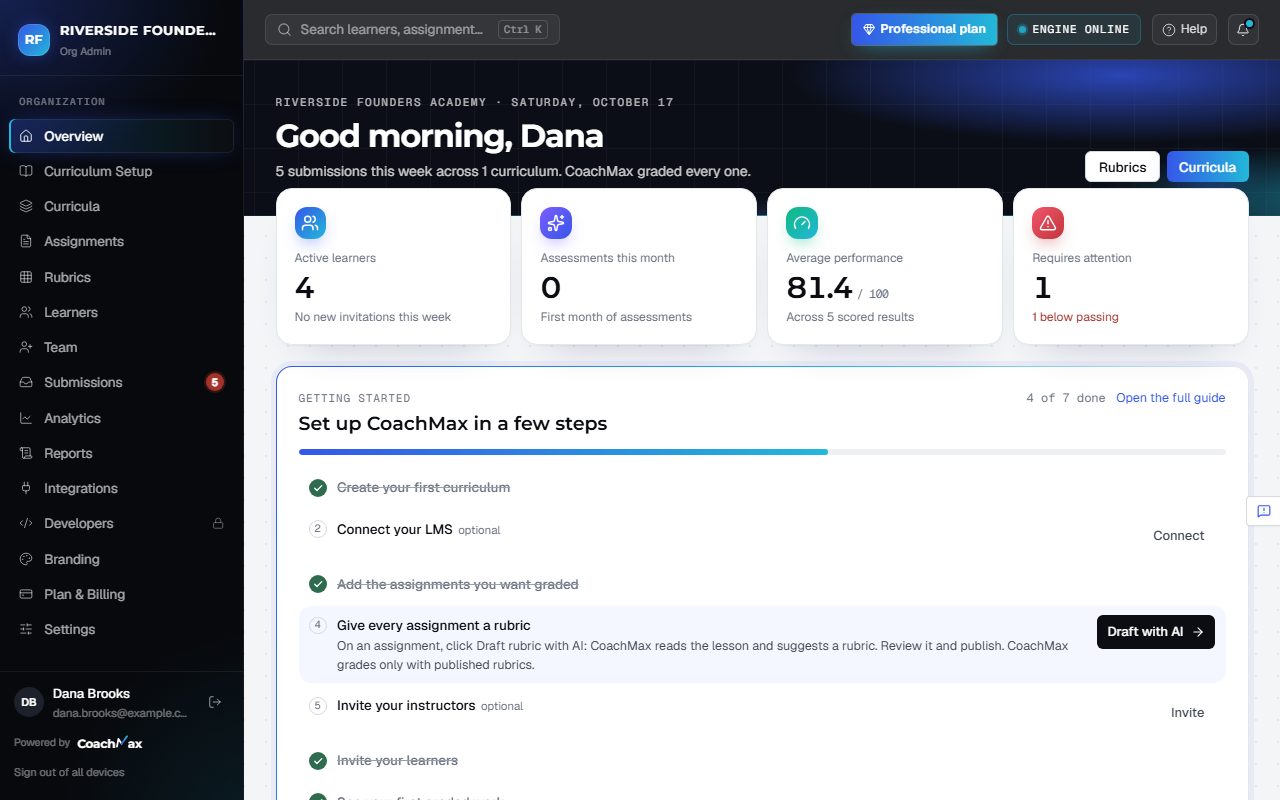
- Sign in. Your Overview shows Set up CoachMax in a few steps, ticked off as you go.
- Click Start on Create your first curriculum.
2. Name your levels
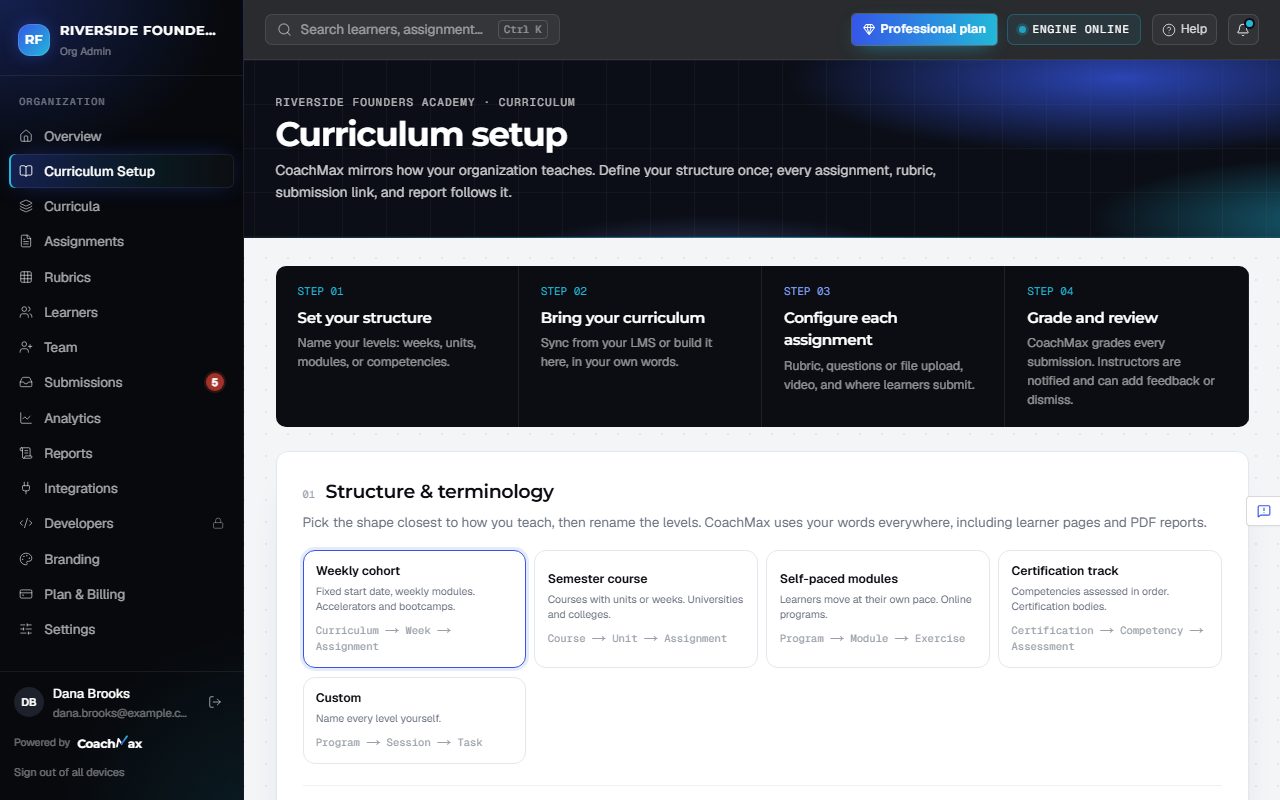
- Open Curriculum Setup. Under Structure & terminology, pick the preset closest to your program: Weekly cohort, Semester course, Self-paced modules, Certification track, or Custom.
- Change any name in Top level is called, Each section is a, Graded work is a, and A group of learners is a, then click Save structure.
- CoachMax uses your words everywhere: menus, emails, and reports.
3. Create the curriculum and its assignments
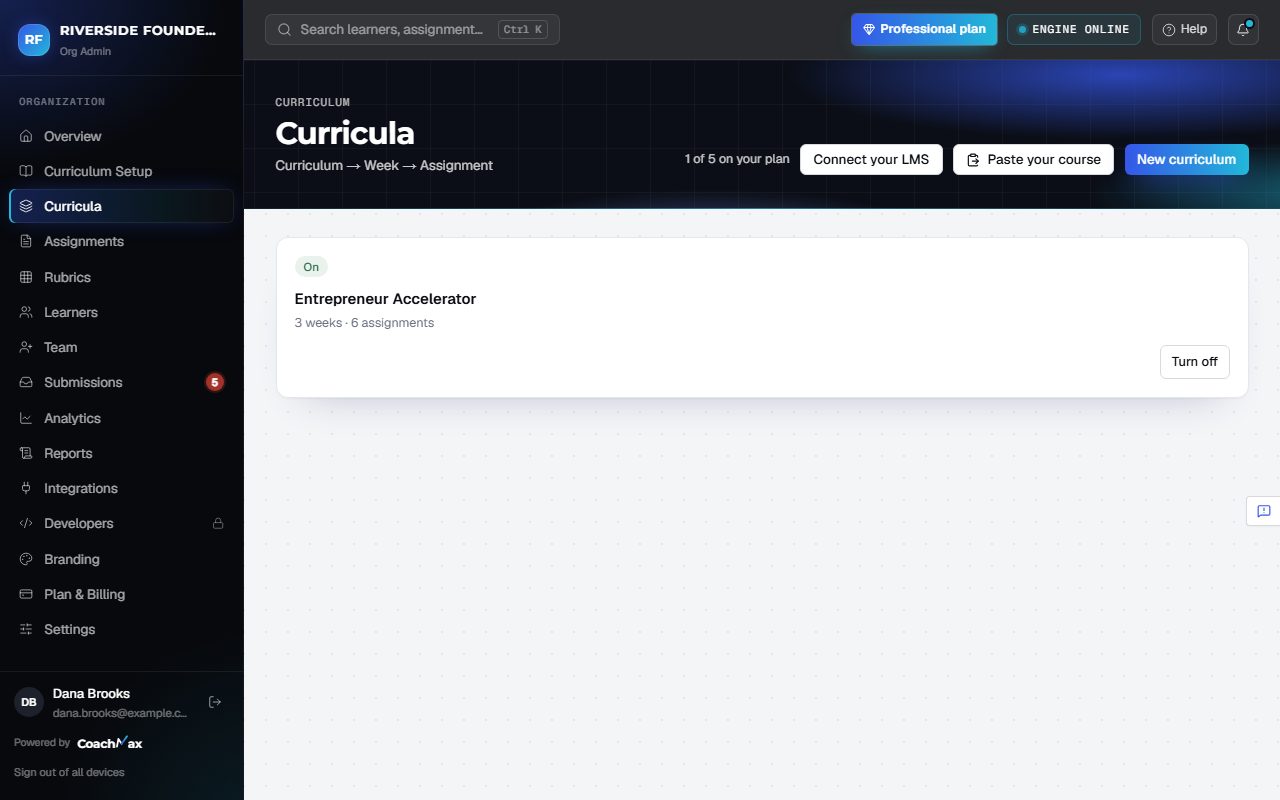
- Open Curricula in the menu and click New curriculum. Give it a name and, if you like, a start date and the number of weeks.
- Add weeks, then add the assignments you want graded in each week (see Add weeks and assignments).
- Already have the course in Thinkific, Teachable, or another LMS? Click Add from your LMS instead: each course becomes a curriculum.
- No LMS connection? Click Paste your course and CoachMax AI builds it from your outline.
Still stuck? Sign in and click Help at the top right to ask CoachMax, or email support@maxuniversity.org.