1. Find what's waiting
- Your Overview shows how many submissions need you and how long the oldest has waited. Click Start reviewing.
- Or open Submissions: Needs your review lists what's waiting, oldest first.
2. Review one
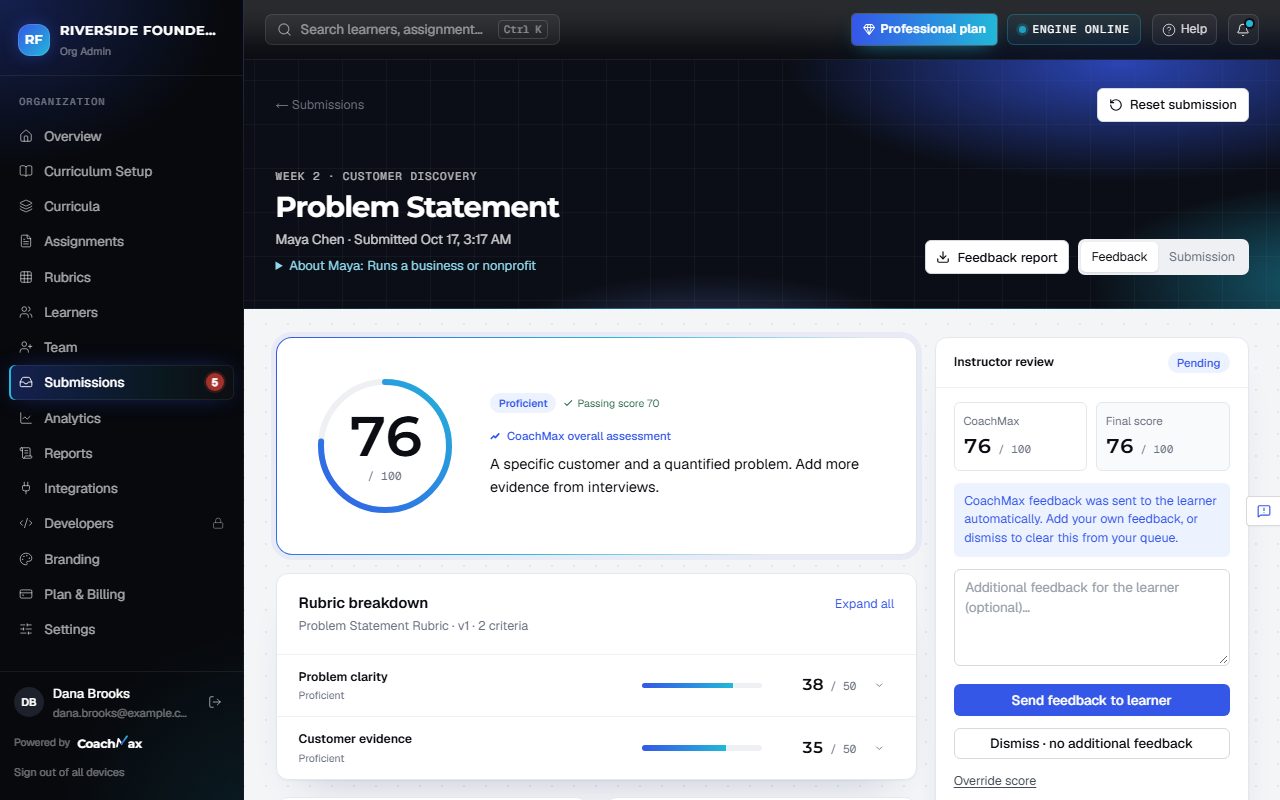
- The Feedback report shows the overall score and the Rubric breakdown: a score for each part, with quotes from the learner's work. Click Expand all to open every part.
- PDFs, Word documents, images, and videos open right on the page.
- About the learner shows their profile, which CoachMax used to make feedback fit them.
- If they resubmitted, Assessment details shows the attempt number and earlier scores.
3. Release it
- In Instructor review, add anything you want under Additional feedback for the learner.
- Click Send feedback to learner (or Release with my feedback). To release without adding anything, click Dismiss · no additional feedback.
- Then click Next in queue to open the next one.
Still stuck? Sign in and click Help at the top right to ask CoachMax, or email support@maxuniversity.org.