1. The rubric
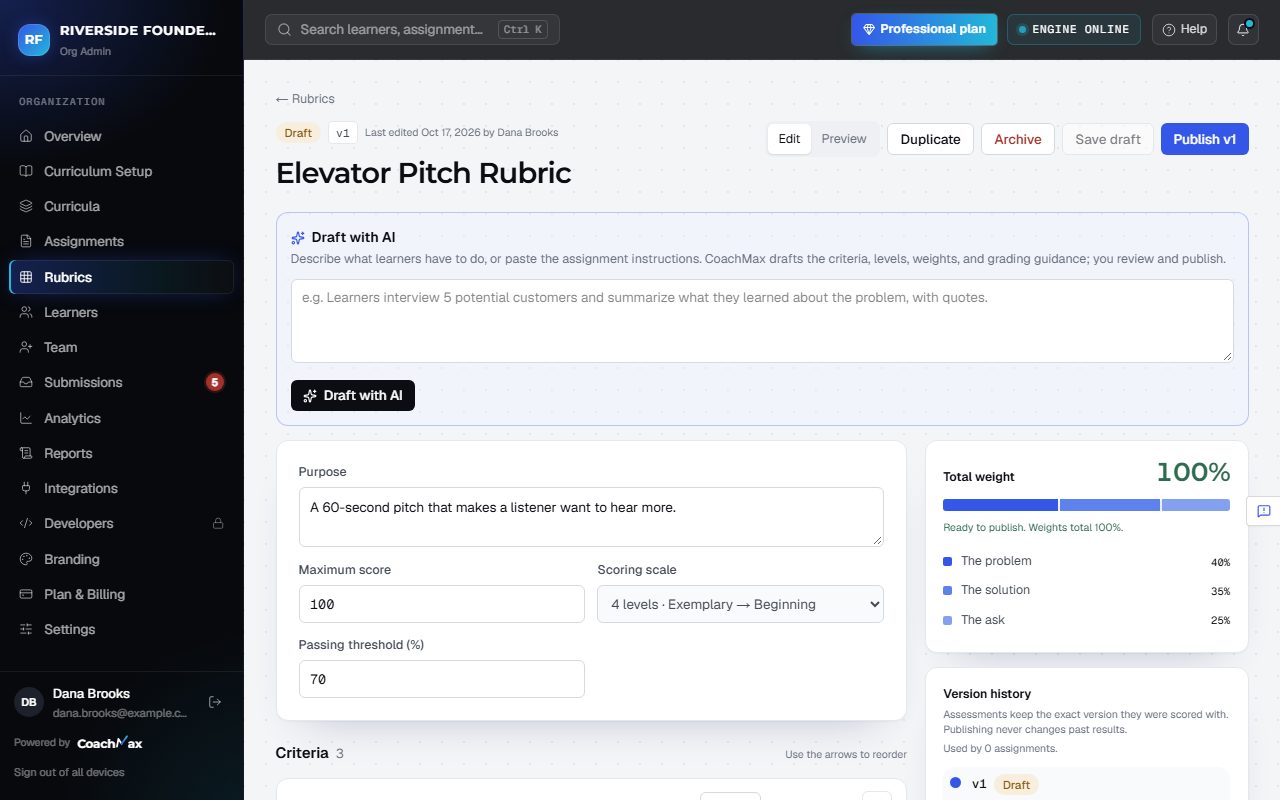
- Open Rubrics and click a rubric. Set its Purpose, Maximum score, Scoring scale, and Passing threshold (%).
- For each criterion, write a Description, the Performance levels, the Required evidence, and AI evaluation instructions (how CoachMax should judge it). Click + Add criterion for more.
- Weights must add up to 100: Total weight shows the sum, and Distribute evenly splits it for you.
2. Save, preview, publish
- Save draft keeps your changes without using them. Discard draft throws them away.
- The Preview tab shows the rubric the way learners see it.
- Click Publish v2 (the next version number) to start grading with it. Earlier results stay locked to the version that graded them; Version history lists every version.
- Duplicate copies a rubric to adapt it; Archive hides one you no longer use, and Restore brings it back.
Still stuck? Sign in and click Help at the top right to ask CoachMax, or email support@maxuniversity.org.