1. What you need
- Thinkific's Grow or Plus plan: they include API access. The site owner or an admin creates the API key.
- On another Thinkific plan? Use the Submit with CoachMax button in your lessons instead (see Embed buttons in your LMS), or Paste your course to build it in CoachMax.
2. Connect
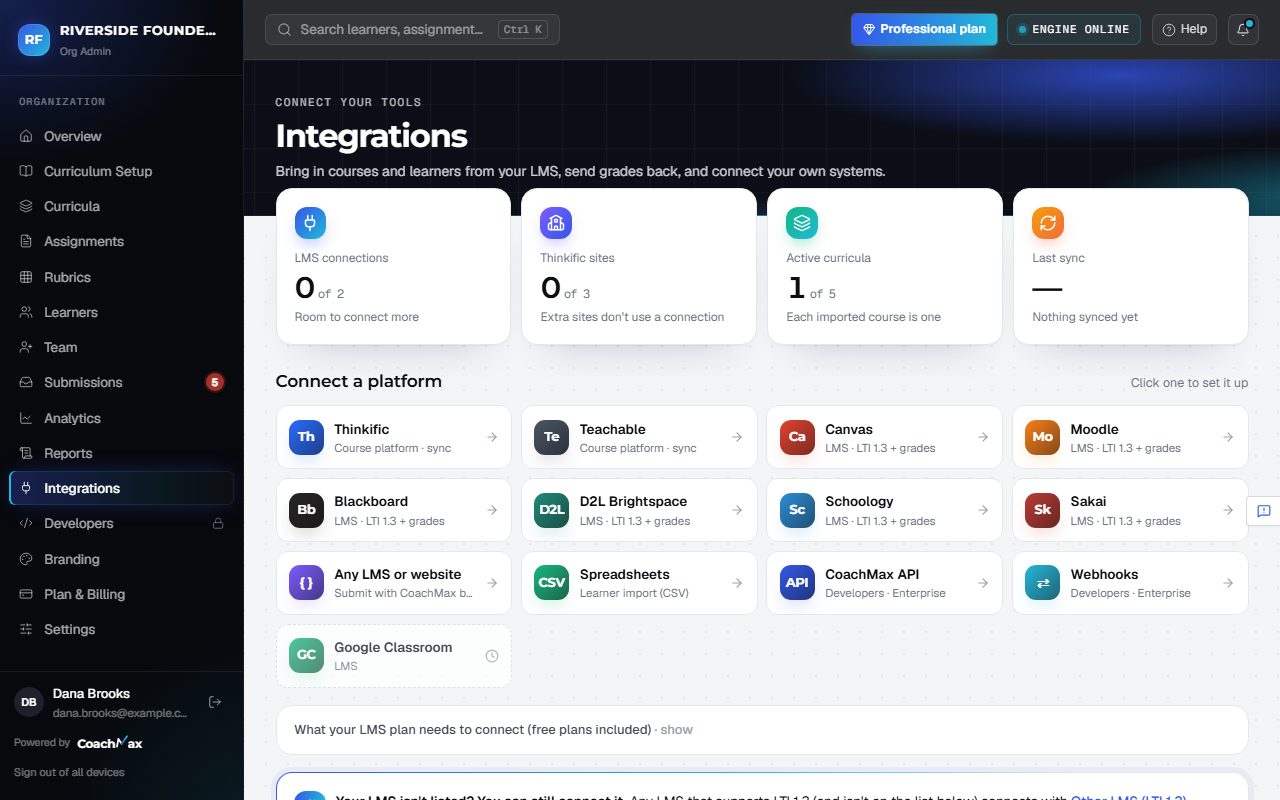
- Open Integrations in the menu. Enter your Thinkific address and API access token, then click Connect Thinkific.
- Click Add or change courses. Each course becomes its own curriculum, with its chapters and graded lessons.
- Under Learners from Thinkific, click Select all new and Invite to bring your students in.
- Open the new curriculum and click Choose graded assignments to keep only the lessons CoachMax should grade.
3. Staying in sync
- Lessons and learners sync automatically, and CoachMax refreshes every connection once a day. Click Sync now anytime.
- If Thinkific asks CoachMax to slow down or is briefly down, the sync waits and continues by itself.
- Professional and Enterprise can connect up to 3 Thinkific sites (Connect another Thinkific site). All of them together count as one LMS connection.
- Disconnect stops syncing. What's already in CoachMax stays.
Still stuck? Sign in and click Help at the top right to ask CoachMax, or email support@maxuniversity.org.