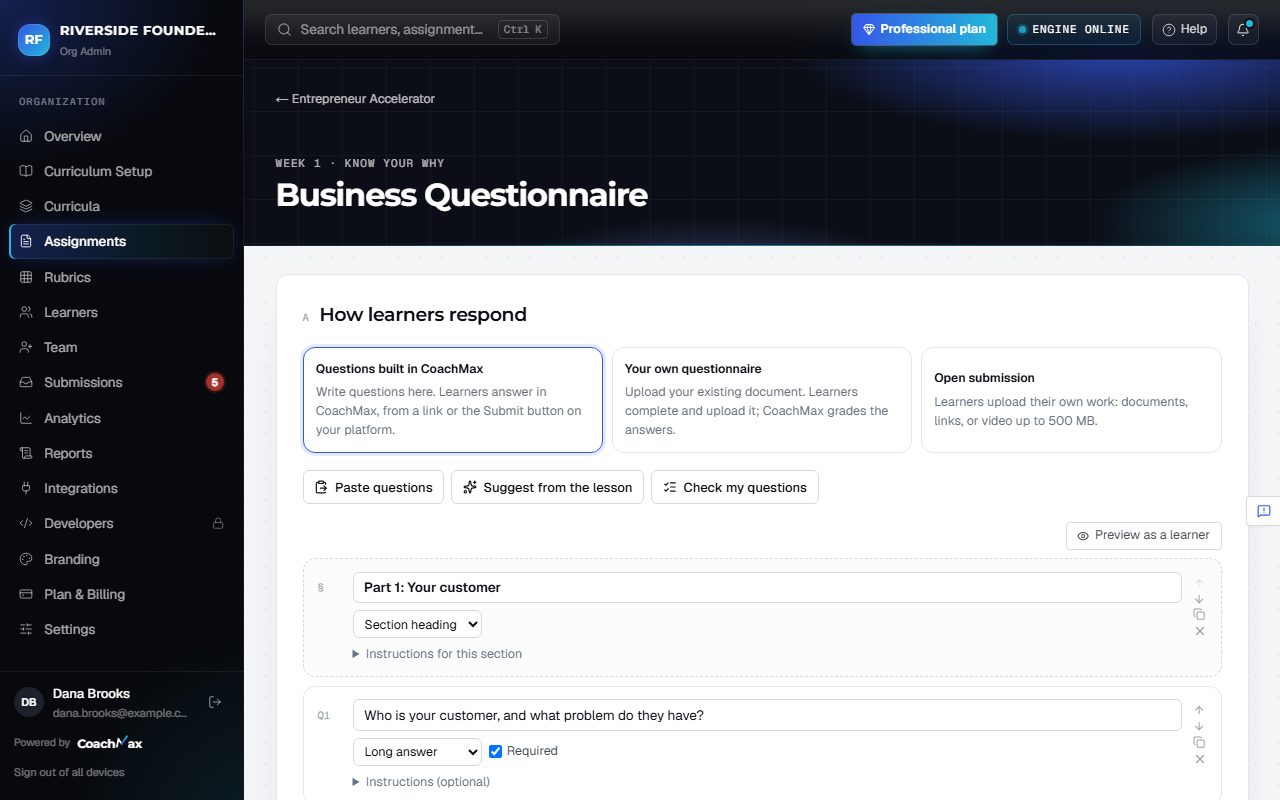
1. Add questions
- Open an assignment, go to Questions & delivery, and choose Questions built in CoachMax.
- Add long or short answer, multiple choice, checkboxes, true or false, rating scale, number, or link questions, plus section headings.
- Write instructions with bold, italic, and bulleted lists. Mark questions Required or optional, reorder or copy them, and click + Add a choice for more options.
- Click Preview as a learner to see exactly what learners get, then Back to editing.
2. Score quiz questions automatically
- On a multiple choice, checkboxes, true or false, or number question, tick Score automatically (quiz).
- Pick the correct answer, set the points, and add why (optional). Checkboxes earn partial credit; numbers can allow give or take.
- CoachMax scores these instantly. Learners never see the answers before their feedback is released.
- If every question is a quiz question, no rubric is needed. Otherwise, choose how much the quiz counts and the rubric grades the rest.
3. Let CoachMax AI help
- Paste questions: paste from a document, an old quiz, or your LMS, click Detect questions, and CoachMax finds each type, the choices, and a marked correct answer.
- Suggest from the lesson: CoachMax proposes quiz and open questions from the lesson text.
- Check my questions: CoachMax adds tips under unclear questions.
- You choose what to add, then click Save.
Still stuck? Sign in and click Help at the top right to ask CoachMax, or email support@maxuniversity.org.